
Fix eyes not looking at the camera
Great smile, but your eyes were on something else? Turn your eyes to the camera in the photo you already have. Your face, smile and background stay as they were.
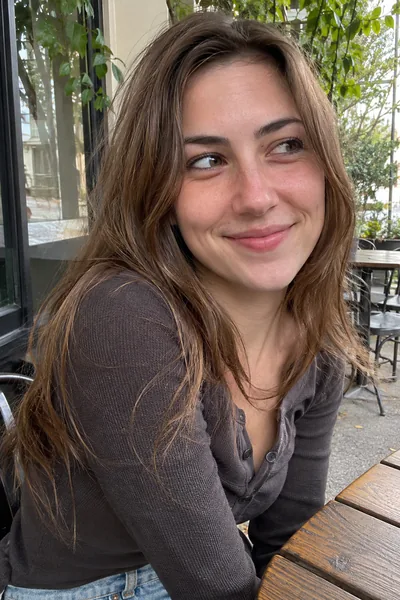 Before
 After
To fix eyes that aren't looking at the camera, check a Live Photo or burst for a frame where you looked at the lens. If there isn't one, turn your eyes with a retouching tool such as Glowly, which moves only your eyes and leaves your face, smile and background as they were.
It happens all the time: the light is right and the smile is real, but your eyes were on the phone screen, a friend or something behind the camera. In a candid photo that can look lovely. In a profile photo, a headshot or a photo for someone you love, people expect to meet your eyes, and a sideways look reads as distracted.
Free options first
- Live Photo. On iPhone, tap Edit, then the Live Photo button, and look for a frame where your eyes met the lens. Set it as the key photo.
- The burst. People often glance at the camera just before or after the shot. Check the frames around it.
- Next time: look at the lens, not the screen. On a phone, the lens is the small dot at the top, a little above where your face appears. Our guide on eyes not looking at the camera has more tips.
How to fix it with Glowly
- Open the web editor in any phone or computer browser, or Glowly on iPhone, and choose the photo.
- Tap Look to turn your eyes toward the camera in one step.
- To fine-tune, tap More, then Gaze, and turn the dial toward Left or Right until your eyes meet the lens.
- Press and hold the photo to compare with the original, then save.
Glowly moves your pupils and redraws the eyes around them. It doesn't turn your head, change your smile or touch the background.
Getting it to look right
- Match the head. If your whole head was turned far to one side, eyes that look straight at the camera can look odd. A small change is often more natural than a big one.
- Check both eyes. They should point at the same spot. Zoom in to make sure.
- Keep the candid ones. A friend looking at someone they love just past the camera is often the better photo. Only fix the ones where you wanted eye contact.
Why do I never look at the camera in photos?
Most of us look at the screen or the person taking the photo rather than the lens, especially in selfies. The lens is a little above the screen, so your eyes land just below it.
Will it change my face?
No. Glowly moves only your eyes. Your face shape, skin, smile and background stay as they were, and you compare with the original before you save.
Can I fix it for free?
Sometimes. A Live Photo or burst may already have a frame with eye contact. If not, Glowly is free to preview. In the web editor there's nothing to install and no account needed to try; 1 full-size save costs $0.99 and 3 cost $1.99. On iPhone your first 2 saves are free.
What happens to my photo?
Your original is never changed. Originals and unsaved edits are deleted from our servers after 7 days. See the privacy policy.
Read more
- How to fix eyes not looking at the camera in a photoLooked at the screen, at a friend or just past the lens? Why it happens, how to avoid it, and how to fix where your eyes look in a photo you already have.
- How to take a good selfie: light, angle and a real expressionA good selfie is mostly light, distance and timing. Here is how to take one that looks like you on a good day, with the phone you already have.
- The best dating profile photos, and how to get themWhich photos to use on Hinge, Tinder and Bumble, which to leave out, and how to get good ones from your camera roll without a photographer.
Fix something else
- Fix closed eyes in a photoBlinked in the one good photo? Open your eyes in the photo you already have. Only your eyes change; the light, the room and your expression stay as they were.
- Fix closed eyes in a group photoBlinked in the group photo where everyone else looks great? Open your own eyes in that photo. Everyone else, and everything around you, stays exactly as it was.
- Fix closed eyes in a photo on iPhoneThe iPhone Photos app can't open closed eyes, but there are three ways to fix a blink on iPhone, two of them free. Here's which to try first.
- Fix a dark face in a backlit photoSunset behind you and your face came out dark? Light your face and keep the sunset. Your expression and hair stay as they were.
- Fix a forced smile in a photoA stiff, held-too-long smile can make a good photo look awkward. Soften it into a natural one in the photo you already have, and keep everything else.
- Fix half-closed eyes in a photoEyes caught halfway through a blink, or squinting in the sun? Open them a little in the photo you already have. Only your eyes change; the light, the place and your smile stay as they were.
- Fix closed eyes in a graduation photoBlinked in your graduation photo? Open your eyes in the photo you already have, from the ceremony, the campus or the family shot. Only your eyes change.
- Fix closed eyes when you laughed in a photoLaughed so hard your eyes shut in the best photo of the night? Open your eyes and keep the laugh. Your smile, the light and the background stay as they were.
- Fix closed eyes in a night photoBlinked in the one good photo from a night out? Open your eyes in the photo you already have. Your smile, the city lights and the background stay as they were.
- Fix closed eyes in a wedding photoBlinked in a wedding photo? Ask the photographer for the next frame, or open your own eyes in the photo you have. Everyone else and the moment stay exactly as they were.
- Fix your head tilted down in a photoChin down and looking up at the camera, so you look tired or moody? Lift your chin a little in the photo you already have. Your face, hair and background stay the same.
- Fix looking angry in a photoLook annoyed in a photo when you felt fine? Relax lowered brows in the photo you already have. Your face, the light and the background stay as they were.
- Add a smile to a photoLooked serious in a photo you otherwise love? Add a natural, closed or open smile to your own face, and leave the rest of the photo untouched.
- Fix squinting in a photoSquinted in the sun in a photo you otherwise like? Open your eyes a little in the photo you already have. The sunlight, the place and your smile stay as they were.
- Fix a tight-lipped smile in a photoPressed your lips together when someone said "smile"? Turn a tight, closed smile into your natural one in the photo you already have. Everything else stays the same.
- Fix looking tired in a photoLook tired in a photo taken late or in dim light? Open heavy eyes a little and lift the light on your face, in the photo you already have.
- Make your dating profile photo betterYour best dating photo is often one you already have, minus a blink or a stiff smile. Fix the moment, keep the person, and put your best real photo first.