
Fix looking tired in a photo
Look tired in a photo taken late or in dim light? Open heavy eyes a little and lift the light on your face, in the photo you already have.
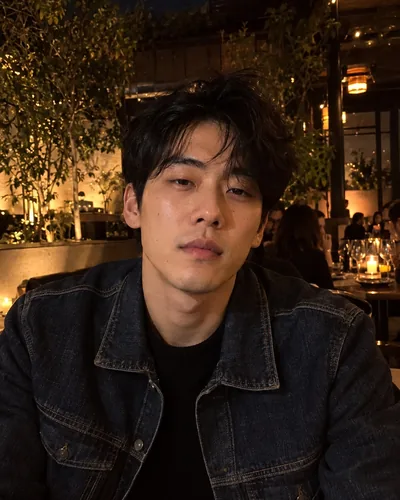 Before
 After
You usually look tired in a photo because of two things: heavy, half-open eyes and low light from above that puts shadows under them. To fix it, brighten the photo first with your phone's free editor, then open the eyes a little and lift the light on your face with a retouching tool such as Glowly, which keeps the room and the moment as they were.
Free options first
- Brighten the photo. In Photos on iPhone or Google Photos, raise Shadows a little and Exposure less. It lifts dark eye sockets without making the background look washed out. Our guide on brightening a dark photo of your face shows the settings.
- Another frame. Late-evening photos are often Live Photos or bursts. Eyes are rarely heavy in every frame.
- Black and white. Tired skin and redness show less in monochrome. It is a real fix for some photos, not just a filter.
How to fix it with Glowly
- Open the web editor in any phone or computer browser, or Glowly on iPhone, and choose the photo.
- Auto runs first. In a photo like the one above, it opens heavy eyes a little, adds light to the face and relaxes the expression.
- To adjust one part, tap Eyes, Light or Smile and turn its dial. Turn a dial back to the start to undo that part.
- Press and hold the photo to compare with the original, then save.
Glowly changes your expression and the light on your face. It doesn't reshape your face, smooth your skin or remove under-eye lines, so you still look like yourself on a good day, not like a different person.
Getting it to look right
- Open the eyes just a little. Tired eyes need less than closed ones. Stop as soon as you look awake.
- Keep the mood. A dinner photo should still look like evening. Add enough light to see your face, not daylight.
- Compare with the original. Hold the photo before you save and check that the eyes still match the rest of your face.
Why do I look tired in photos but not in the mirror?
Overhead light casts shadows under the eyes, a phone flash flattens the face, and the camera catches you mid-blink more often than you'd think. The mirror shows a moving face in light you chose. See why you look different in photos.
Can I fix tired eyes for free?
Partly. Raising shadows in your phone's editor helps with dark circles. Opening heavy eyes needs a retouch. Glowly is free to preview. In the web editor there's nothing to install and no account needed to try; 3 full-size saves cost $1.99. On iPhone your first 2 saves are free.
Does Glowly remove dark circles or wrinkles?
No. It changes the expression and the light, not your skin. Dark circles look softer with more light on the face, but they stay yours.
What happens to my photo?
Your original is never changed. Originals and unsaved edits are deleted from our servers after 7 days. See the privacy policy.
Read more
- How to brighten a dark photo of your faceYour face is in shadow but the photo is otherwise good? Free ways to brighten it on iPhone, why it often looks worse, and how to fix the light itself.
- Why do I look different in photos than in the mirror?The mirror flips you, phone cameras stretch faces up close, and light and timing do the rest. What's really going on, and what to do about it.
- Why your eyes look half closed in photos, and how to fix itSquinting, sleepy-looking or half-closed eyes in photos have a few simple causes. Here's how to avoid them, and how to fix a photo where it already happened.
Fix something else
- Fix closed eyes in a photoBlinked in the one good photo? Open your eyes in the photo you already have. Only your eyes change; the light, the room and your expression stay as they were.
- Fix closed eyes in a group photoBlinked in the group photo where everyone else looks great? Open your own eyes in that photo. Everyone else, and everything around you, stays exactly as it was.
- Fix closed eyes in a photo on iPhoneThe iPhone Photos app can't open closed eyes, but there are three ways to fix a blink on iPhone, two of them free. Here's which to try first.
- Fix a forced smile in a photoA stiff, held-too-long smile can make a good photo look awkward. Soften it into a natural one in the photo you already have, and keep everything else.
- Fix half-closed eyes in a photoEyes caught halfway through a blink, or squinting in the sun? Open them a little in the photo you already have. Only your eyes change; the light, the place and your smile stay as they were.
- Fix closed eyes in a graduation photoBlinked in your graduation photo? Open your eyes in the photo you already have, from the ceremony, the campus or the family shot. Only your eyes change.
- Fix closed eyes in a wedding photoBlinked in a wedding photo? Ask the photographer for the next frame, or open your own eyes in the photo you have. Everyone else and the moment stay exactly as they were.
- Add a smile to a photoLooked serious in a photo you otherwise love? Add a natural, closed or open smile to your own face, and leave the rest of the photo untouched.
- Fix squinting in a photoSquinted in the sun in a photo you otherwise like? Open your eyes a little in the photo you already have. The sunlight, the place and your smile stay as they were.
- Make your dating profile photo betterYour best dating photo is often one you already have, minus a blink or a stiff smile. Fix the moment, keep the person, and put your best real photo first.