
Fix closed eyes in a photo on iPhone
The iPhone Photos app can't open closed eyes, but there are three ways to fix a blink on iPhone, two of them free. Here's which to try first.
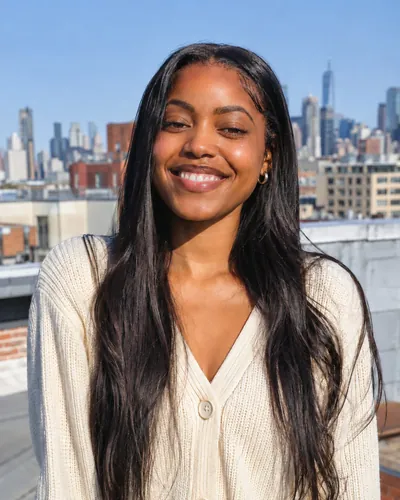 Before
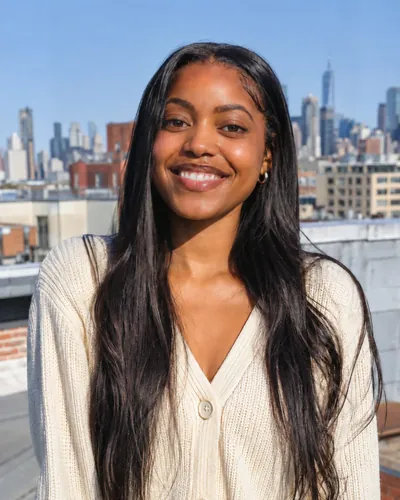 After
The Photos app on iPhone can crop, straighten and remove small objects, but it has no tool that opens closed eyes. There are still three good ways to fix a blink on your phone. Try them in this order.
1. Pick another frame from the Live Photo (free)
If the photo says Live in the corner, it holds about three seconds of frames.
- Open the photo and tap Edit.
- Tap the Live Photo button at the bottom.
- Slide along the frames to one where your eyes are open, then tap Make Key Photo and Done.
The new frame is a little softer than the original still, which is fine for sharing. Our guide on choosing a Live Photo key photo covers it step by step.
2. Check the burst (free)
If you held the shutter or took several in a row, open the photos next to it. One of them may already have your eyes open.
3. Open your eyes with Glowly
If no frame has the moment you want, retouch the one you have.
- Open app.glow.ly in Safari, or Glowly from the App Store, and choose the photo. The web editor needs nothing installed.
- Auto runs first and opens your eyes, along with anything else the photo needs.
- To fine-tune, tap Eyes and turn the dial. Press and hold the photo to compare with the original.
- Save the photo back to your library.
Only your eyes and the skin around them change. Your face, hair, clothes and everything behind you stay as they were.
Can the iPhone Photos app fix closed eyes?
No. Photos can change a Live Photo's key frame, which helps if another frame has your eyes open, but it can't open eyes that are closed in every frame.
Is fixing closed eyes on iPhone free?
The Live Photo and burst methods are free. Glowly is free to preview. In the web editor there's nothing to install and no account needed to try; 3 full-size saves cost $1.99. In the iPhone app your first 2 saves are free.
Do I need to download an app?
No. The web editor at app.glow.ly works in Safari on iPhone. The iPhone app is there if you'd rather use it.
What happens to my photo?
Your original is never changed. Originals and unsaved edits are deleted from our servers after 7 days. See the privacy policy.
Read more
- How to pick a different frame from a Live Photo on iPhoneBlinked or looked away in a Live Photo? Choose a better frame as the key photo in a few taps, and know when that trick isn't enough.
- How to fix closed eyes in a photoSomeone blinked in the one photo where everything else is right. Here are the ways to fix closed eyes on iPhone, from Live Photos to AI retouching, and what to avoid.
- How to stop blinking in photosWhy you always seem to blink in photos, what photographers do about it, and how to fix a blink in a photo you already have.
Fix something else
- Fix closed eyes in a photoBlinked in the one good photo? Open your eyes in the photo you already have. Only your eyes change; the light, the room and your expression stay as they were.
- Fix closed eyes in a group photoBlinked in the group photo where everyone else looks great? Open your own eyes in that photo. Everyone else, and everything around you, stays exactly as it was.
- Fix a forced smile in a photoA stiff, held-too-long smile can make a good photo look awkward. Soften it into a natural one in the photo you already have, and keep everything else.
- Fix half-closed eyes in a photoEyes caught halfway through a blink, or squinting in the sun? Open them a little in the photo you already have. Only your eyes change; the light, the place and your smile stay as they were.
- Fix closed eyes in a graduation photoBlinked in your graduation photo? Open your eyes in the photo you already have, from the ceremony, the campus or the family shot. Only your eyes change.
- Fix closed eyes in a wedding photoBlinked in a wedding photo? Ask the photographer for the next frame, or open your own eyes in the photo you have. Everyone else and the moment stay exactly as they were.
- Add a smile to a photoLooked serious in a photo you otherwise love? Add a natural, closed or open smile to your own face, and leave the rest of the photo untouched.
- Fix squinting in a photoSquinted in the sun in a photo you otherwise like? Open your eyes a little in the photo you already have. The sunlight, the place and your smile stay as they were.
- Fix looking tired in a photoLook tired in a photo taken late or in dim light? Open heavy eyes a little and lift the light on your face, in the photo you already have.
- Make your dating profile photo betterYour best dating photo is often one you already have, minus a blink or a stiff smile. Fix the moment, keep the person, and put your best real photo first.