
Fix closed eyes in a photo
Blinked in the one good photo? Open your eyes in the photo you already have. Only your eyes change; the light, the room and your expression stay as they were.
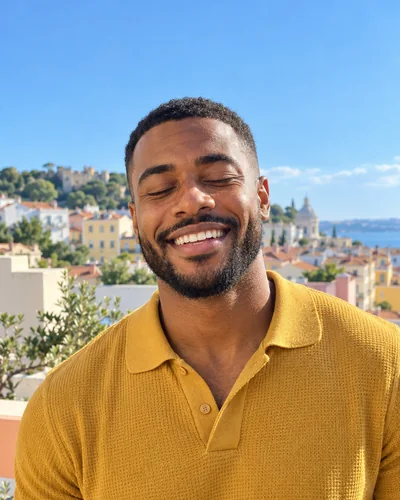 Before
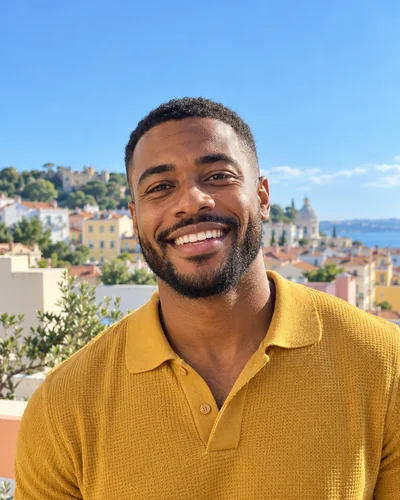 After
AfterA blink lasts a tenth of a second, and it still lands in the photo where the light, the laugh and the angle were finally right. You don't need to retake it. You need your eyes open in that photo.
How to open your eyes in a photo with Glowly
- Open the web editor in any browser, or Glowly on iPhone, and choose the photo.
- Auto runs first. It sees the closed eyes and opens them, along with anything else the photo needs.
- To fine-tune, tap Eyes and turn the dial between As is and Open. Stop where it still looks like you.
- Press and hold the photo to compare with the original, then save.
Glowly redraws only your eyes and the skin around them. Your hair, clothes, background and the rest of your face stay the same, pixel for pixel, so the photo doesn't take on the smooth, generated look of a full redraw.
When a free fix works better
Check two things first:
- Live Photo. On iPhone, tap Edit, then the Live Photo button, and pick a frame where your eyes are open. It's free, a little softer than the original still.
- The burst. If you took a few in a row, one of them may already have open eyes.
If neither has the moment you want, a retouch is the reliable option. Our guide on fixing closed eyes in a photo compares every method, including pasting eyes by hand.
What makes it look natural
- Matching the expression. Laughing eyes are a little narrowed. Glowly keeps that, so open eyes don't sit oddly over a big smile.
- Keeping your eyes yours. Shape, color and eyelid crease come from your face, not a template.
- Changing nothing else. If the light or the background shifts, people notice even when they can't say why.
Can I fix closed eyes in a photo for free?
Yes, if you have another frame. A Live Photo or a burst often has one with your eyes open. Retouching in Glowly is free to preview; saving the full-size photo uses a credit or Glowly Plus, and on iPhone your first 2 saves are free.
Will it change my face?
Only your eyes and the skin right around them. Your face shape, skin, hair, age and everything else in the photo stay as they were.
Does it work for group photos?
Glowly retouches one face per edit: yours. If several people blinked in a group shot, a burst or a Live Photo is the better fix.
Do I need an iPhone?
No. The web editor at app.glow.ly works in Safari, Chrome, Edge and Firefox on a phone or a computer.
What happens to my photo?
Your original is never changed. Originals and unsaved edits are deleted from our servers after 7 days. See the privacy policy.
Read more
- How to fix closed eyes in a photoSomeone blinked in the one photo where everything else is right. Here are the ways to fix closed eyes on iPhone, from Live Photos to AI retouching, and what to avoid.
- How to smile naturally in photos (and fix a forced smile)Why camera smiles look forced, how to get a real one while the photo is being taken, and how to fix a stiff smile in a photo you already have.
Fix something else
- Fix a forced smile in a photoA stiff, held-too-long smile can make a good photo look awkward. Soften it into a natural one in the photo you already have, and keep everything else.
- Add a smile to a photoLooked serious in a photo you otherwise love? Add a natural, closed or open smile to your own face, and leave the rest of the photo untouched.
- Make your dating profile photo betterYour best dating photo is often one you already have, minus a blink or a stiff smile. Fix the moment, keep the person, and put your best real photo first.