
How to fix a photo without changing your face
Many AI photo editors redraw the whole photo, and your face drifts with it. Here's how to tell a tool that fixes one thing from one that regenerates everything.

You ask an AI editor to open your eyes, and it does. But your nose is a little narrower now, your skin is smoother, the bricks behind you have rearranged themselves, and the photo looks faintly like a painting of you. Nothing is obviously wrong. It just isn't your photo anymore.
That happens because many AI tools don't edit a photo. They make a new one that looks like it.
Two ways an AI edit can work
Regenerating the whole image. The tool reads your photo and draws a new image from scratch with your change in it. It's powerful: it can change the background, the clothes, the style. But every pixel is redrawn, so everything can drift a little, including your face. The most common drift is a slimmer, smoother, more "average" face.
Editing one region. The tool changes only the part that needs changing, for example the eyes, and puts it back into the original photo. Everything outside that region is the original, untouched. There's much less that can drift, because almost nothing was redrawn.
Glowly's face touches work the second way. Smile, Eyes and Look redraw your expression and leave the rest of the photo exactly as it was.
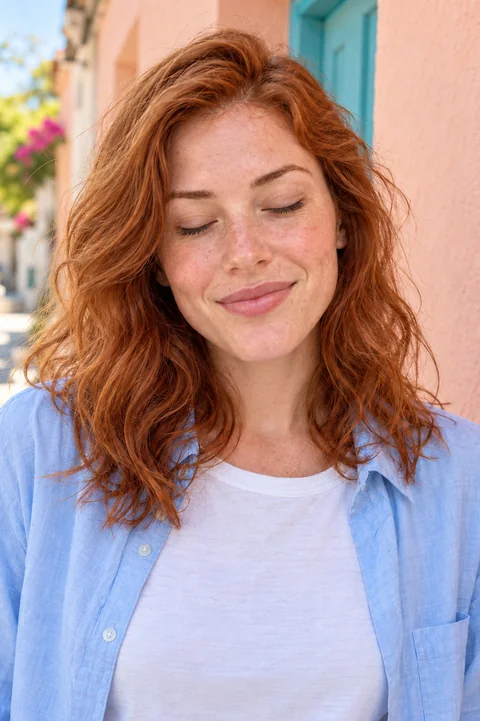 Before
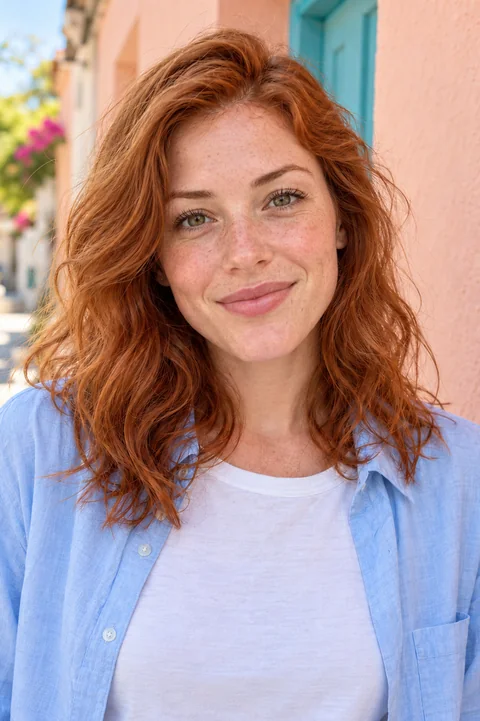 After
AfterHow to check any editor in 30 seconds
- Flip between before and after at full size. Look away from the face: hair edges, text on signs, patterns on clothes, leaves. If they changed, the whole photo was redrawn.
- Look at skin texture. Pores and fine lines turning into smooth plastic is a sign of regeneration.
- Compare the face shape. Jawline, nose width and the distance between the eyes are where faces drift first.
- Check the grain. A real photo has noise, especially in shadows. A regenerated one is often suspiciously clean.
What you can fix without changing your face
- Closed or half-closed eyes. Open closed eyes, including in a group photo.
- A forced or missing smile. Soften a forced smile or add a natural one.
- Eyes off the camera. Turn your eyes toward the lens.
Some fixes are about the whole scene, like changing the light. Those have to redraw more of the photo, and a good tool should tell you so. In Glowly, Light, Posture and Tidy are kept apart, under Body & scene, for that reason.
Why it matters
A photo of you is a promise about what you look like, especially on a dating profile or a work profile. Fixing a blink keeps that promise. Quietly changing your face doesn't, even when nobody meant it to.
If you're weighing specific apps, we compare Glowly with Facetune, Remini and FaceApp.
Try it on one of your own photos in the web editor. Trying touches is free, and your original is never changed.
Keep reading
- How to brighten a dark photo of your faceYour face is in shadow but the photo is otherwise good? Free ways to brighten it on iPhone, why it often looks worse, and how to fix the light itself.
- How to fix eyes not looking at the camera in a photoLooked at the screen, at a friend or just past the lens? Why it happens, how to avoid it, and how to fix where your eyes look in a photo you already have.
- A FaceApp alternative for a natural smile in a real photoFaceApp's smile filter is quick fun. If you want a smile that looks natural in a photo you'll actually use, here's what to look for, and a tool built for it.