
How to open closed eyes in Photoshop, and faster ways
The classic Photoshop method for fixing closed eyes, step by step, plus when a phone or browser fix gets you there in a minute instead.
Photoshop can fix closed eyes, and the classic method has been the same for years: borrow open eyes from another photo of the same person and blend them in. It gives you full control. It also takes time, and it only works when you have a second photo that matches.
Here is the method, what makes it look right, and the faster options when you just need the photo fixed.
What you need first
A second photo of the same person, with open eyes, taken at about the same moment: same light, same head angle, same distance. Burst photos and other frames from the same shoot are ideal. A photo from another day almost never matches.
The Photoshop method, step by step
- Open both photos. In the one with open eyes, select the eyes and a generous area of skin around them with the Lasso tool.
- Copy them, switch to the photo with closed eyes and paste. The eyes arrive on their own layer.
- Lower the new layer's opacity to about 50% so you can see through it, then move, scale and rotate it (Edit > Free Transform) until the eyes line up. Set the opacity back to 100%.
- Add a layer mask and paint with a soft black brush around the edges so only the eyes and eyelids from the new photo show.
- Match the light. Use Curves or Levels clipped to the layer if the borrowed eyes are brighter, darker or a different color than the rest of the face.
- Zoom out and look at the whole face. If the eyes look pasted on, the angle or the light doesn't match; soften the mask or try another frame.
Photoshop Elements also has an Open Closed Eyes feature that does much of this for you. You still need a source photo with open eyes, ideally of the same person.
What makes it look natural
- Matching expression. Laughing eyes are narrowed. Wide-open eyes from a neutral frame look wrong over a big smile.
- Matching angle. A few degrees of head turn is enough to make the eyes look off.
- Matching light and sharpness. If one eye area is crisper or warmer than the face around it, people notice even when they can't say why.
Faster ways
If you don't have Photoshop, don't have a matching second photo, or just want the photo done in a minute:
- A Live Photo. On iPhone, pick a different frame where your eyes are open. Free, a little softer than the original.
- A retouch app. Glowly opens your eyes in the photo you have, with no second photo needed. It draws your own eyes, matched to your expression, and leaves everything else as it was.
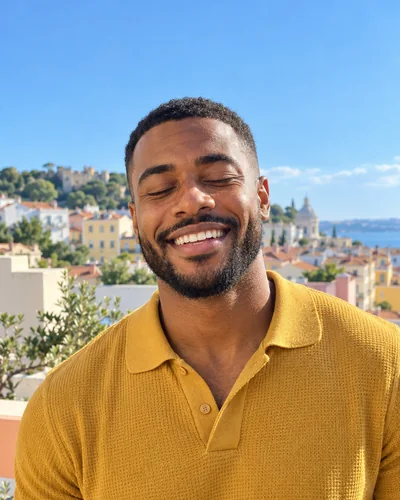 Before
 After
AfterThe web editor works in any browser. Trying it is free; saving the full-size photo uses a credit or Glowly Plus. For a full comparison of every option, see how to fix closed eyes in a photo.
Which should you use?
Use Photoshop when you have a matching frame and want control over every pixel. Use a Live Photo when you have one. Use a retouch when you have only the one photo and want it fixed now. Whichever you choose, the rule is the same: fix the moment, not the person.
Fix this in a photo
- Fix closed eyes in a photoBlinked in the one good photo? Open your eyes in the photo you already have. Only your eyes change; the light, the room and your expression stay as they were.
Keep reading
- How to brighten a dark photo of your faceYour face is in shadow but the photo is otherwise good? Free ways to brighten it on iPhone, why it often looks worse, and how to fix the light itself.
- How to fix a photo without changing your faceMany AI photo editors redraw the whole photo, and your face drifts with it. Here's how to tell a tool that fixes one thing from one that regenerates everything.
- How to fix eyes not looking at the camera in a photoLooked at the screen, at a friend or just past the lens? Why it happens, how to avoid it, and how to fix where your eyes look in a photo you already have.